Installing GB WhatsApp for the first time can feel a little intimidating, especially if you have never installed an app outside the Google Play Store. The good news is that the GB WhatsApp installation process is straightforward, and even complete beginners can do it without any technical knowledge. This guide breaks everything down into simple, easy to follow steps.

By the end of this article, you will know exactly what to do, what to avoid, and how to enjoy all the amazing features of GB WhatsApp in just a few minutes.
What Makes GB WhatsApp Installation Different
The official WhatsApp is available on the Google Play Store, which means installation is as simple as tapping the Install button. GB WhatsApp, on the other hand, is a third party modification, so you need to install it manually using an APK file. This requires a small change in your phone settings, but it is nothing complicated.
Before You Start the Installation
Taking a few minutes to prepare your phone will save you from headaches later. Here is what you need to do before installing GB WhatsApp.
Check Your Android Version
GB WhatsApp works on Android 4.0 and above. Almost all Android phones released in the last decade meet this requirement. To check your Android version, go to Settings, then About Phone, and look for the Android Version field.
Back Up Your Current Chats
If you are switching from the official WhatsApp, you need to back up your chats first. Open WhatsApp, go to Settings, then Chats, and tap on Chat Backup. Choose to back up to Google Drive or local storage. This step ensures you do not lose any of your conversations.
Free Up Storage Space
GB WhatsApp itself is not very large, but your chat backups and media files can take up significant space. Make sure you have at least 500MB of free storage on your phone before you start.
Step by Step Installation Process
Now that your phone is ready, let us walk through the GB WhatsApp installation step by step.
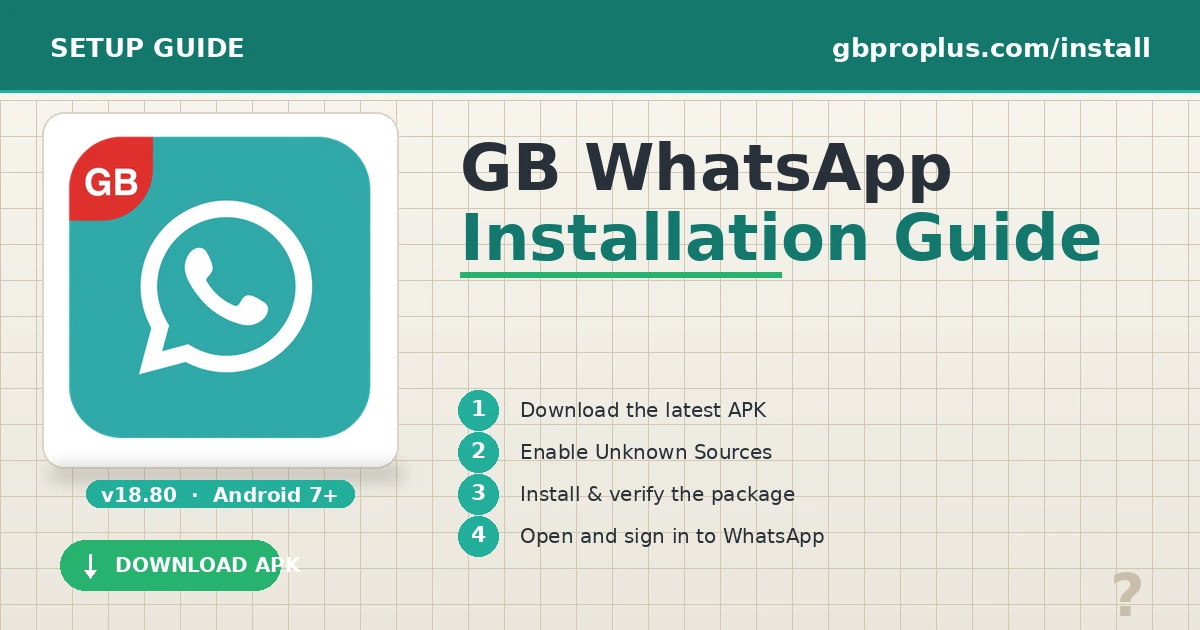
Step 1: Enable Installation from Unknown Sources
Open your phone Settings and search for Unknown Sources or Install Unknown Apps. The exact location depends on your phone brand and Android version. Once you find the option, enable it for the browser or file manager you will use to download the APK.
Step 2: Download the GB WhatsApp APK
Open your phone browser and visit a trusted GB WhatsApp website. Look for the latest version of the app and tap on the Download button. The file is usually around 50MB and will download in a few minutes on a good internet connection.
Step 3: Locate the Downloaded File
Once the download is complete, open your phone file manager and navigate to the Downloads folder. You should see the GB WhatsApp APK file there. The file name usually ends with .apk.
Step 4: Start the Installation
Tap on the APK file to start the installation. Your phone will ask you to confirm the installation. Tap on Install and wait for the process to finish. This usually takes less than a minute.
Step 5: Open the App and Verify Your Number
After installation, tap on Open to launch GB WhatsApp. The app will ask you to enter your phone number. Make sure you enter the number you want to use for GB WhatsApp. You will receive a verification code via SMS, or you can choose the call option if the SMS does not arrive.
Step 6: Restore Your Backup
After verification, GB WhatsApp will automatically detect any local backup files on your phone. If it finds a backup, it will ask if you want to restore your chats. Tap on Restore and wait for the process to complete. All your previous conversations, photos, and videos will be back where they belong.
Common Installation Problems and Solutions
Sometimes the GB WhatsApp installation does not go as smoothly as planned. Here are some common issues and how to fix them.
Installation Stuck or Failed
If the installation freezes or fails, check that you have enough storage space on your phone. Also, make sure the APK file is not corrupted by downloading it again from a different source.
App Crashes on Opening
If GB WhatsApp crashes immediately after opening, it might be incompatible with your phone. Try downloading an older version of the app that is known to work on your device.
Verification Code Not Received
If you do not receive the verification code, wait a few minutes and try again. You can also choose the call me option to receive the code through an automated phone call.
Cannot Find the APK File
If you cannot find the downloaded APK, open your browser and check the Downloads section. You can also use the file manager search function to look for files ending with .apk.
Important Things to Do After Installation
Installing GB WhatsApp is just the beginning. Here are a few important things you should do right after installation to get the best experience.
Update the App Regularly
Check for updates every few weeks. Developers release new versions with bug fixes, new features, and security improvements. Updating ensures you always have the best experience.
Adjust Your Privacy Settings
Go through the privacy settings and enable the options that matter to you. Hide your online status, turn on anti revoke messages, and set up chat lock for extra security.
Choose a Theme
Visit the theme store and pick a design that matches your style. You can change your theme anytime, so do not be afraid to experiment with different looks.
Installation Safety Tips
Because GB WhatsApp is not available on the Play Store, you need to be careful about where you download it from. Follow these safety tips to protect your phone.
Download only from websites that are well known in the GB WhatsApp community. Read user reviews before downloading. Keep your antivirus app active. Avoid clicking on random ads that claim to offer GB WhatsApp downloads, as these often lead to malicious files.
Differences Between Installation on Different Phones
The installation process is mostly the same across all Android phones, but the location of the Unknown Sources setting may vary.
| Phone Brand | Unknown Sources Location |
|---|---|
| Samsung | Settings, Biometrics and Security, Install Unknown Apps |
| Xiaomi | Settings, Privacy, Special Permissions, Install Unknown Apps |
| Oppo | Settings, Security, Install Unknown Apps |
| Vivo | Settings, Security, Install Unknown Apps |
| Realme | Settings, Apps, Special Access, Install Unknown Apps |
Final Thoughts
The GB WhatsApp installation process is simple once you know the steps. By preparing your phone, downloading from a trusted source, and following the instructions in this guide, you can have GB WhatsApp up and running in less than fifteen minutes. Remember to back up your chats, adjust your privacy settings, and enjoy exploring everything this powerful messaging app has to offer.
Frequently Asked Questions
Do I need a computer to install GB WhatsApp? No, you can install GB WhatsApp directly on your Android phone using your mobile browser.
Can I install GB WhatsApp on iPhone? No, GB WhatsApp is only available for Android devices. iPhone users cannot install it.
Will I lose my chats when switching to GB WhatsApp? No, if you back up your chats before switching, you can restore them on GB WhatsApp after installation.
How long does the installation take? The whole process, from download to setup, usually takes around ten to fifteen minutes.
Do I need to uninstall the original WhatsApp first? Yes, you must uninstall the official WhatsApp before installing GB WhatsApp on the same phone number.